
Primary sources: official Developer Forum announcement and Creator Hub mesh documentation.
What changes
Roblox Studio adds CollisionFidelity = Tunable for MeshPart and PartOperation. Selecting it exposes CollisionPrecision, a per-object control for balancing a more faithful collision shape against lower physics cost.
When to use it
It is especially useful when fixed options do not represent thin components, openings, or highly detailed meshes well. Maximum precision is not automatically best: more complex collision geometry also costs more.
How to test it
- Select the problematic
MeshPart. - In Properties, set
CollisionFidelitytoTunable. - Adjust
CollisionPrecisionfrom Studio's automatically selected value. - Enable Collision fidelity in Visualization Options to compare the visible mesh with its collision shape.
- Test the player's real route, plus moving or physics-driven objects.
Quick choice
Use Box or Hull for decoration and simple forms; try Tunable when a doorway, hole, ramp, or edge needs more fidelity; reserve PreciseConvexDecomposition for cases where measurements justify its higher cost.
Improved visualizers
Studio can display visual and collision geometry together, filter by CanCollide, CanQuery, CanTouch, and collision groups, and preview collision geometry while editing. This helps catch invisible barriers before publishing.
Important limit
Tunable does not turn collision geometry into a one-to-one copy of the visual mesh. If a complex shape still fails, Roblox recommends considering custom collision made from invisible parts, especially for large objects.
Pre-publish checklist
- [ ] Players can pass through every intended opening.
- [ ] Ramps and edges have no invisible steps.
- [ ] Decorative pieces use inexpensive fidelity.
- [ ] Collision filters match the intended interaction.
- [ ] Testing covered a place copy and a published session.
Was this helpful?
Keep exploring

In-experience makeup: Roblox now lets players create and save looks
Compatible experiences can now offer face, eye, and lip makeup plus eyebrows and eyelashes, with player confirmation and moderation before the item is saved.
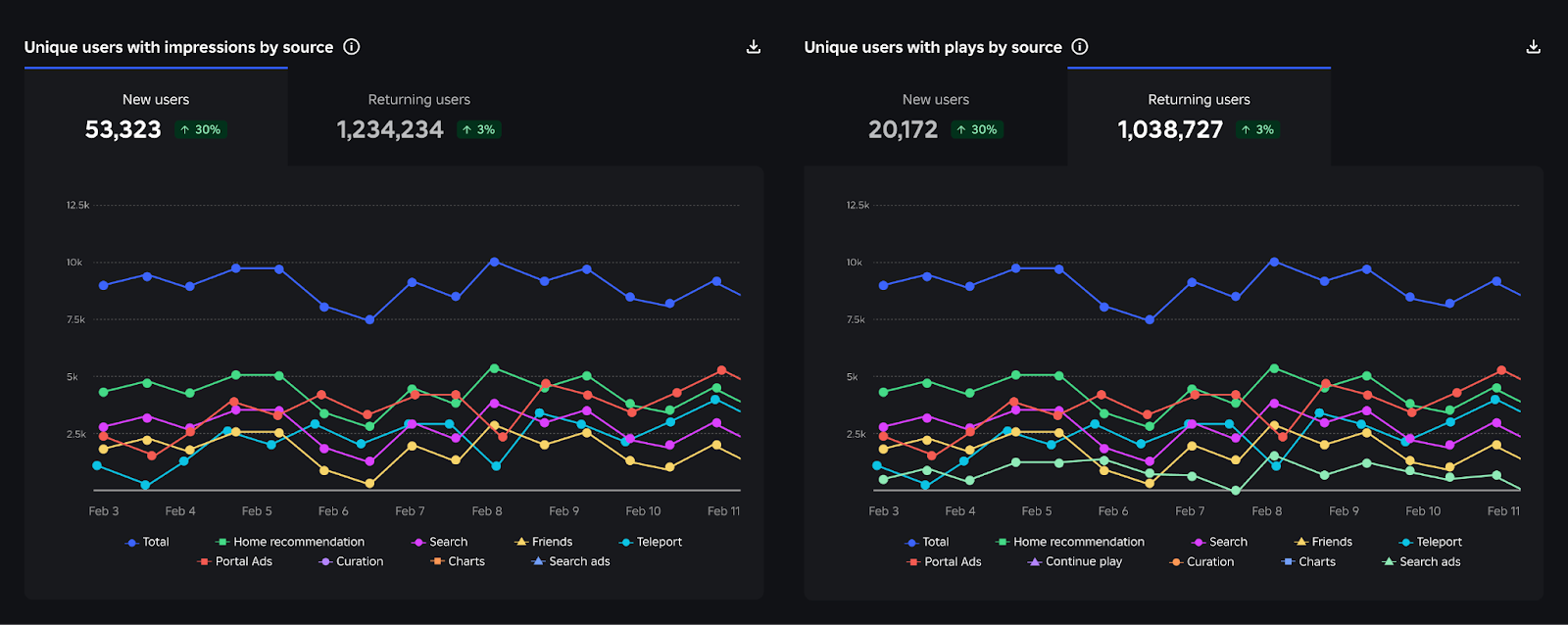
Creator Analytics changed Discovery measurement: do not compare October 12 like an ordinary day
Roblox now records Home, Search, and Charts impressions, clicks, and plays more reliably; counts may rise and PTR may fall without a real performance change.
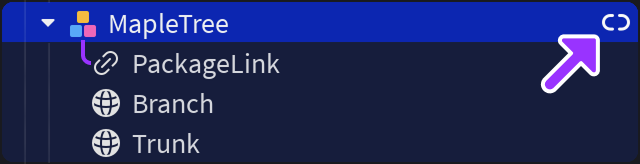
Package Overrides: edit packages without losing future updates
The Studio beta preserves local changes as overrides and reapplies them when the source package updates; everyone in Team Create should enable it.