
Evergreen guide. Researched: October 16, 2026 (UTC).
Quick answer
In +1 Loot To Forge, completing a forge adds the weapon to your Backpack, but does not automatically replace your equipped weapon. Open Backpack → Weapon, select the result and press Equip.
Requirements
You must own a weapon and be in Good Bro Studio's experience. This guide starts after crafting: checking equipment does not require spending more ore.
Switch your weapon
- Open Backpack and choose Weapon.
- Select your newly obtained weapon and compare its Power with your current one.
- Also inspect its skill: name or rarity alone does not settle the choice.
- Press Equip if you want to use it.
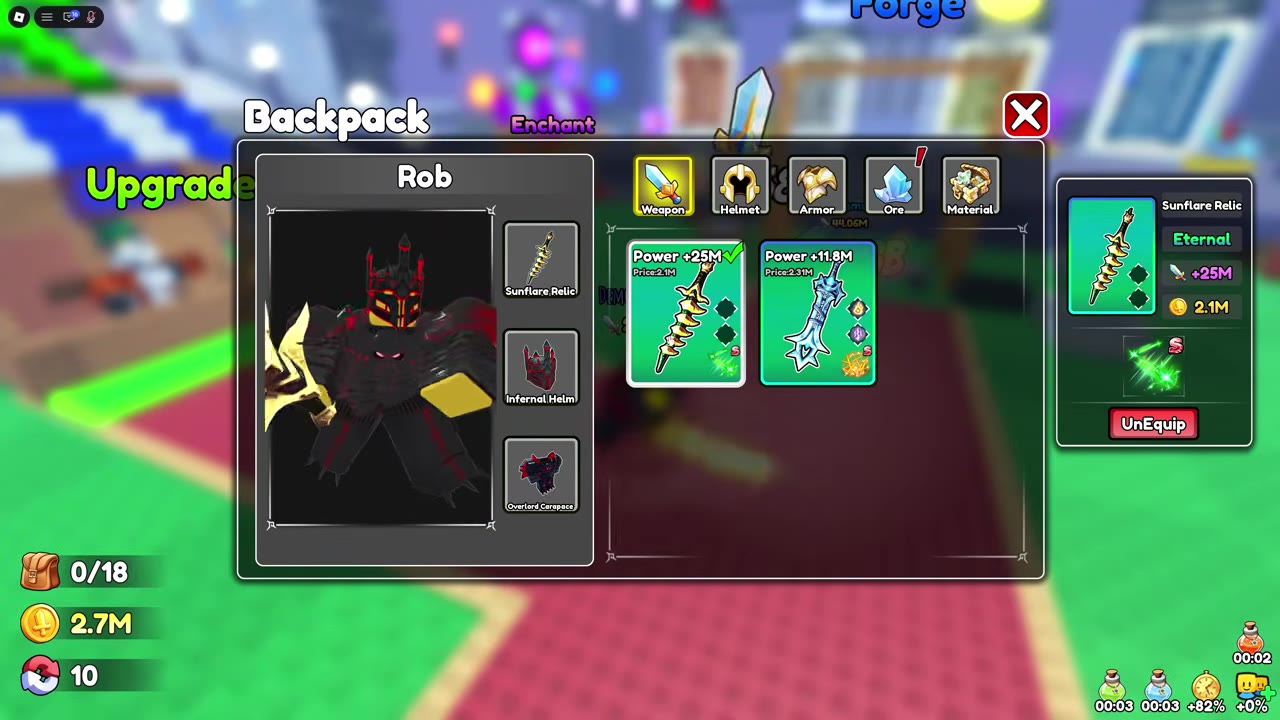
- Confirm the green check, its name in the weapon slot and the UnEquip button.
If the old weapon still appears
Check that you selected the correct item and pressed Equip rather than merely opening its details. This original Backpack visual reference shows the equipment indicators.
Do not forge again to fix a menu problem
Editorial recommendation: keep your previous weapon while comparing. Try both against the same enemy type; a new item does not necessarily improve your setup. If progress still stalls, review training and skills before consuming more materials.
Success: your chosen weapon is marked equipped. Checklist: Weapon tab open; correct item; Power and skill compared; Equip confirmed; indicators checked.
![[PET🐶]+1 Loot To Forge](https://tr.rbxcdn.com/180DAY-933c3d4689bb61d220d3d862135f8637/512/512/Image/Png/noFilter)
Was this helpful?
Keep exploring
+1 Loot To Forge: expand your bag with Max Ore Count and check Index
Stopped picking up ore? Check bag capacity and distinguish the Coin upgrade from collection rewards.
+1 Loot To Forge: Enhance is not Enchant—check what you will spend
Ember Stones and runes serve different actions. Choose the right stall and check costs, risks and results before upgrading equipment.